
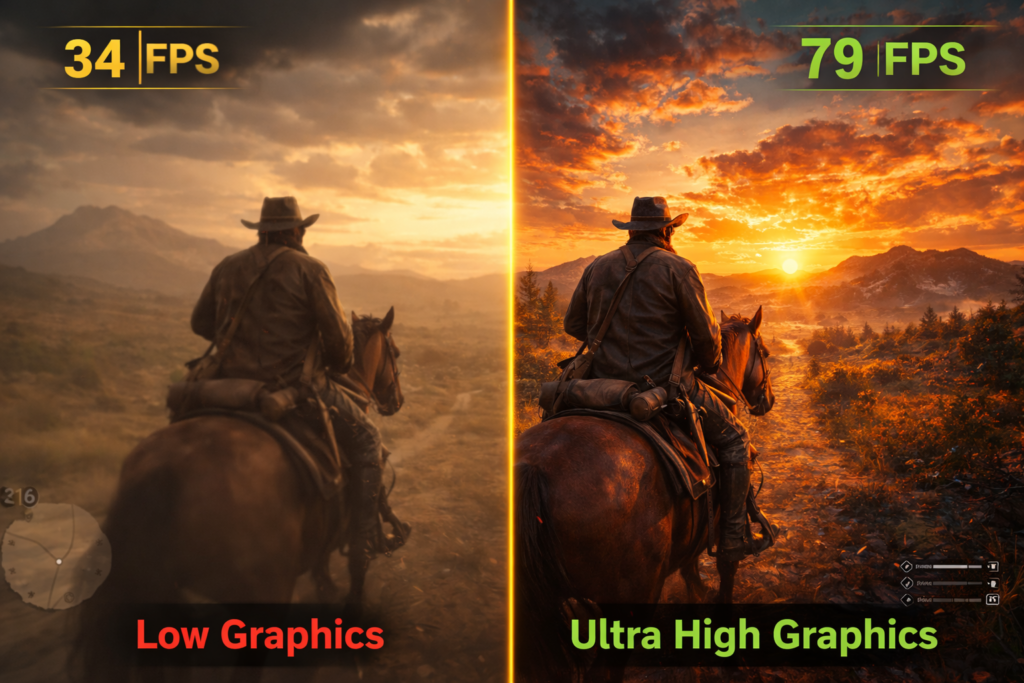
If you’re struggling with lag, stuttering, or low FPS in Red Dead Redemption 2, you’re not alone. Many players searching for best graphics settings for RDR2, how to increase FPS in RDR2, and RDR2 low-end PC settings face the same issue. This open-world game is known for its realistic visuals and detailed environments, but it can be demanding on hardware, especially for mid-range and low-end PCs. The good news is you don’t need an expensive setup to enjoy smooth gameplay. By optimizing RDR2 graphics settings, adjusting performance options, and using the right configuration, you can reduce lag and boost FPS significantly. In this guide, you’ll discover the best settings to fix stuttering, improve performance, and get a smooth gaming experience without losing too much visual quality.
Why RDR2 Lags on Many PCs
RDR2 uses advanced graphics features like realistic lighting, detailed textures, and complex environmental effects. These features require strong GPU and CPU performance. If your system is mid-range or low-end, the default settings may cause frame drops and stuttering.
Common issues include:
- Low FPS in towns and forests
- Stuttering during combat
- High GPU usage and overheating
Optimizing settings can fix most of these problems.
Best Graphics Settings for Smooth Gameplay
🔹 Display Settings
Start with the basics to improve stability:
- Resolution: Use 1920×1080 (or lower if needed)
- Screen Type: Fullscreen (better performance than windowed)
- VSync: Off (reduces input lag)
- Triple Buffering: Off
These adjustments help reduce input delay and improve frame consistency.
🔹 Graphics Settings (Balanced for FPS + Quality)
Here’s the most effective setup for smooth performance:
- Texture Quality: Medium or High
- Anisotropic Filtering: 4x or 8x
- Lighting Quality: Medium
- Global Illumination: Medium
- Shadow Quality: Low or Medium
- Far Shadow Quality: Low
- Reflection Quality: Low
- Water Quality: Medium
- Volumetrics Quality: Low
- Particle Quality: Medium
- Tessellation: Off or Low
These settings reduce GPU load while keeping the game visually appealing.
🔹 Advanced Settings (Important for Performance)
- Graphics API: Vulkan (better stability for most PCs)
- Near Volumetric Resolution: Low
- Far Volumetric Resolution: Low
- Soft Shadows: Off
- Motion Blur: Off
- TAA (Anti-Aliasing): Medium
- FXAA/MSAA: Off
Turning off heavy effects like MSAA and soft shadows can significantly boost FPS.
Tips to Increase FPS in RDR2
Even with optimized settings, a few extra steps can improve performance:
✅ Update Graphics Drivers
Make sure your GPU drivers are up to date. New updates often improve performance for popular games.
✅ Close Background Apps
Running too many programs can reduce system performance. Close unnecessary apps before launching the game.
✅ Use Game Mode (Windows)
Windows Game Mode helps prioritize system resources for gaming.
✅ Adjust Power Settings
Set your PC to “High Performance” mode to avoid power-related slowdowns.
Best Settings for Low-End PC
If you’re using a low-end system, focus on stability:
- Resolution: 1280×720 or 1600×900
- Texture Quality: Medium
- Shadows & Reflections: Low
- Volumetrics: Low
- Anti-Aliasing: Off or Low
This setup ensures playable FPS even on older hardware.
Common Mistakes to Avoid
Many players unknowingly reduce performance by using the wrong settings. Avoid these:
- Using Ultra settings on mid-range PCs
- Turning on MSAA (very demanding)
- Keeping background apps running
- Ignoring driver updates
Fixing these can instantly improve gameplay.
Final Thoughts
Optimizing graphics settings in Red Dead Redemption 2 is the key to smooth and enjoyable gameplay. You don’t need the highest settings to experience the beauty of the game. A balanced setup can deliver great visuals while maintaining stable FPS.
By following this guide, you can reduce lag, improve performance, and enjoy a seamless open-world experience. Whether you’re exploring vast landscapes or engaging in intense action, the right settings make all the difference.
